LLM Resource Management and Governance
Druid provides a centralized, LLM-agnostic framework for managing connections to Large Language Models. This architecture decouples AI Agent logic from specific model providers, allowing you to configure, govern, and switch between models without modifying conversational flows.
By centralizing these resources, Druid ensures that all generative AI activity adheres to enterprise safety standards and is subject to the same Role-Based Access Control (RBAC) policies as the rest of the platform
LLM-Agnostic Orchestration
Druid unifies multiple model providers in a single execution layer. You can configure AI Agents to use models based on performance, cost, and data residency, including:
- Public cloud providers — OpenAI, Mistral AI, Google Vertex AI, AWS Bedrock, and others supported in your environment
- Open source models — LLaMA and compatible frameworks
- Private and hosted models — Druid models (Becus), Mesolitica, or GPT OSS, which can be deployed fully on-premises for maximum data residency.
Centralized Governance
Configuring LLM resources centrally provides several governance advantages:
-
Credential Security. Define API endpoints and keys once in a secure administrative environment rather than hardcoding them into individual AI Agents.
-
Access Control. Use RBAC to restrict who can view, edit, or rotate LLM credentials.
-
Operational Consistency. Ensure that AI Agents features—such as LLM NLU, Machine Translation, and Response Streaming—all use the same authorized and governed model versions.
-
Resilience. Cluster and failover parameters route traffic to backup resources when a primary is not reachable..
Automatic Load Balancing
The Druid Service Gateway includes a native automatic load balancing mechanism that runs in the background.
When you create multiple LLM resources on the same tenant with the exact same Client type and Model — for example, two OpenAI GPT-4o connections — the platform automatically pools them together and distributes traffic evenly across those resources.
This helps reduce the risk of hitting provider throttling limits, such as “Too Many Requests” / Error Code 429, during peak usage.
No additional configuration is required. You continue to use a single integration token , while the Druid Service Gateway automatically distributes requests across the available backend connections.
Supported Vendors and Requirements
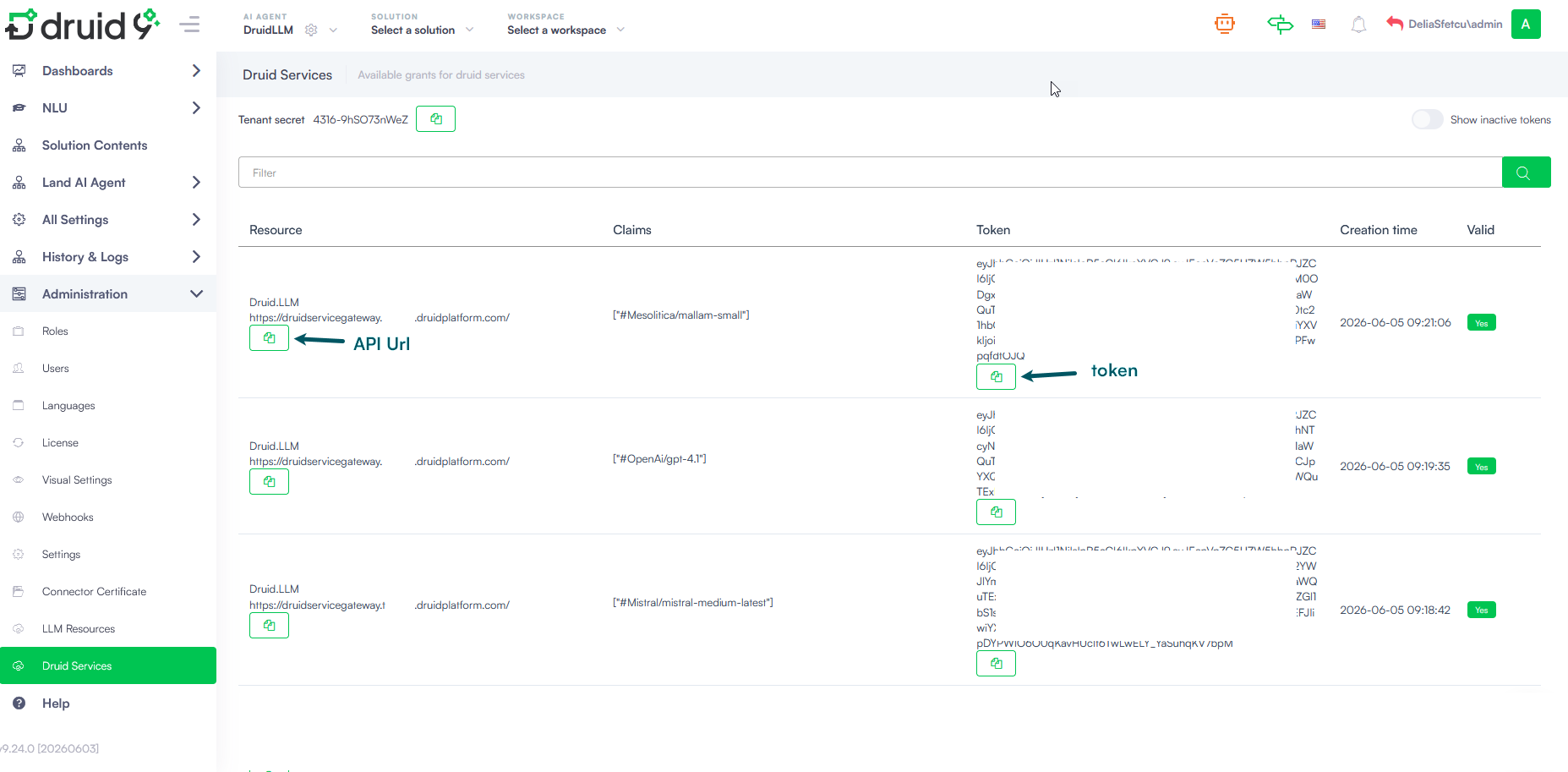
Each AI vendor requires specific information to connect successfully. Use this quick reference table to find out what you need to prepare before setting up your connection:
| Vendor | Authentication | Required parameters |
|---|---|---|
| OpenAI | API Key | None |
| Azure Open AI |
It supports two authentication methods:
Info: OAuth for Azure OpenAI resources is available starting with Druid version 9.18.
|
None |
| Mistral AI | API Key | None |
| Druid | API Key | None |
| Mesolitica | API Key | None |
| Google Vertex AI | Key File Content | projectid, location |
| AWS Bedrock | Access Secret | accessKeyId, region |
Prerequisites for using OAuth for Azure OpenAI resources
- Register an application in Microsoft Entra ID following the Microsoft instructions.
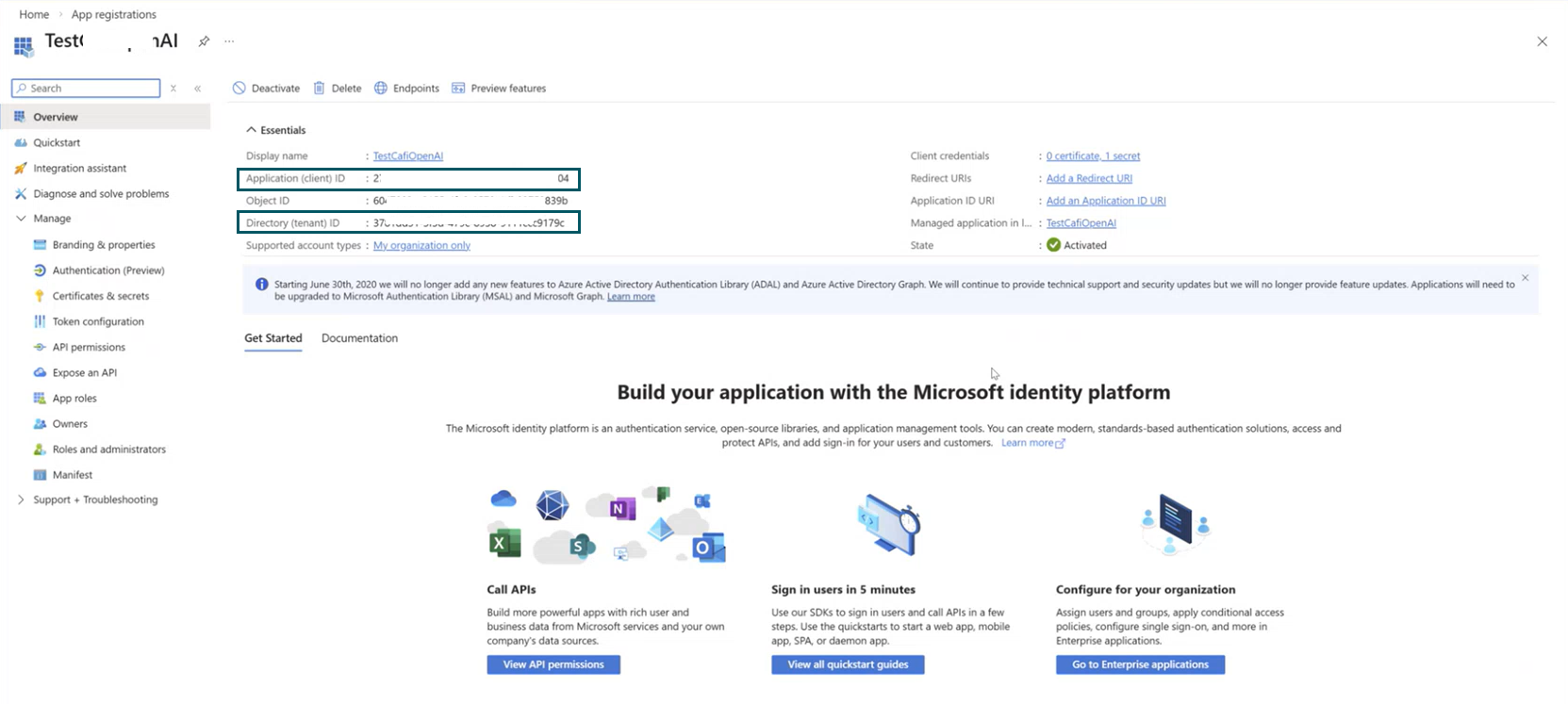
- After you register the application, note the following values:
- Application (client) ID
- Directory (tenant) ID
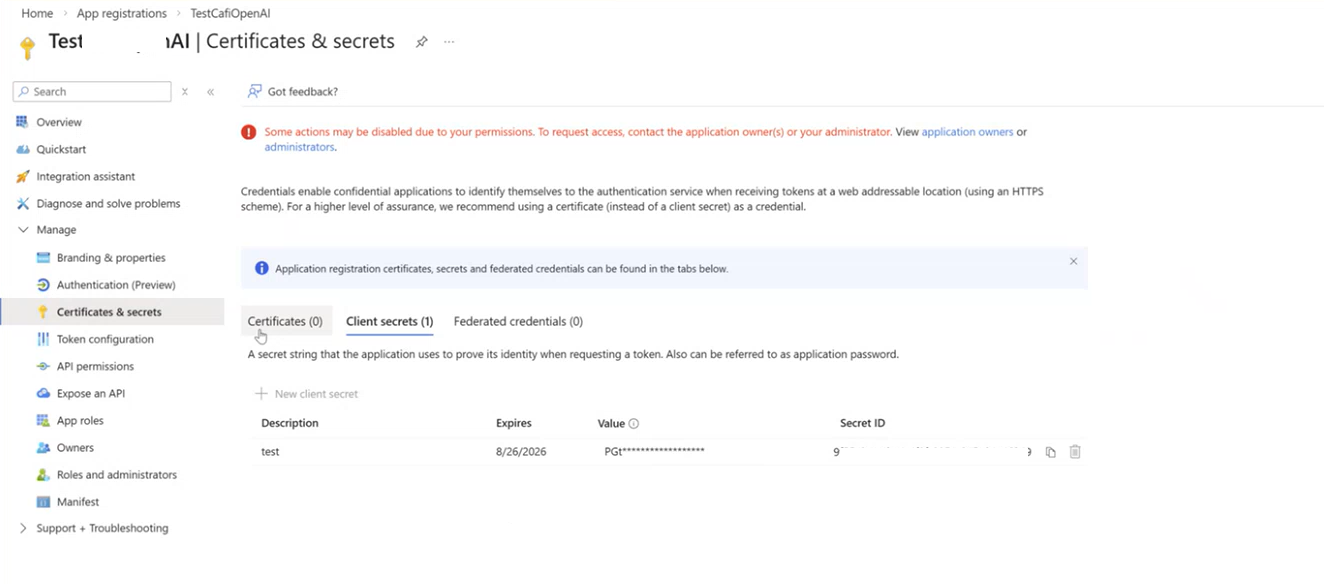
- Create a client secret for your app (Manage > Certificates & Secrets). When a new client secret is generated, copy the value as you'll need it in Druid.
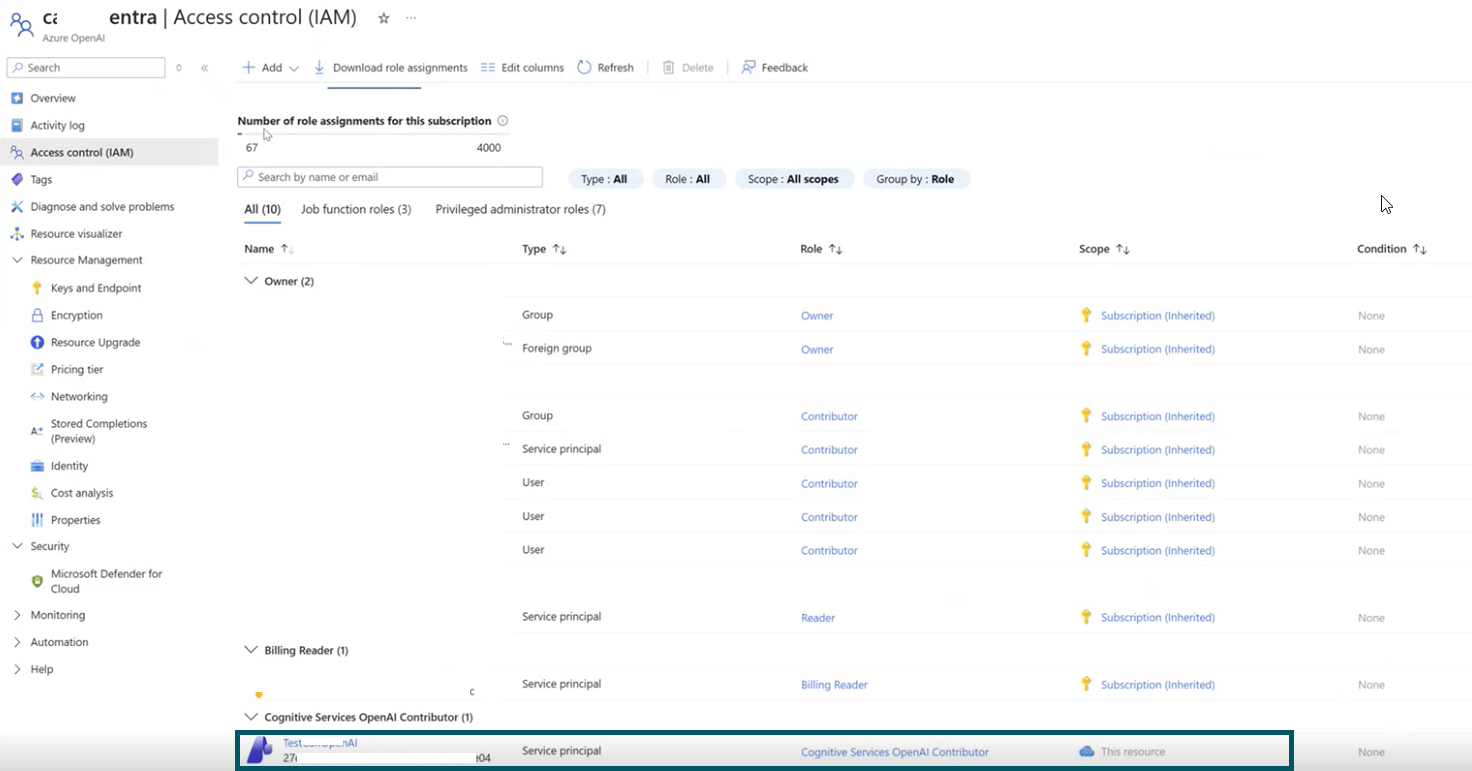
- Grant the application access to Azure OpenAI:
- Open your Azure OpenAI resource in the Azure portal.
- Select Access control (IAM).
- Select Add role assignment.
- Assign the role Cognitive Services OpenAI Contributor.
- Select Members.
- Choose Service principal.
- Select the application you registered.
- Select Review + assign.
You can find these values in the application Overview page.
Add LLM resources
To establish a governed connection to an LLM provider, follow these steps:
- Go to Administration > LLM Resources.
- Click the Create LLM Resource button. The LLM Resource Details modal appears.
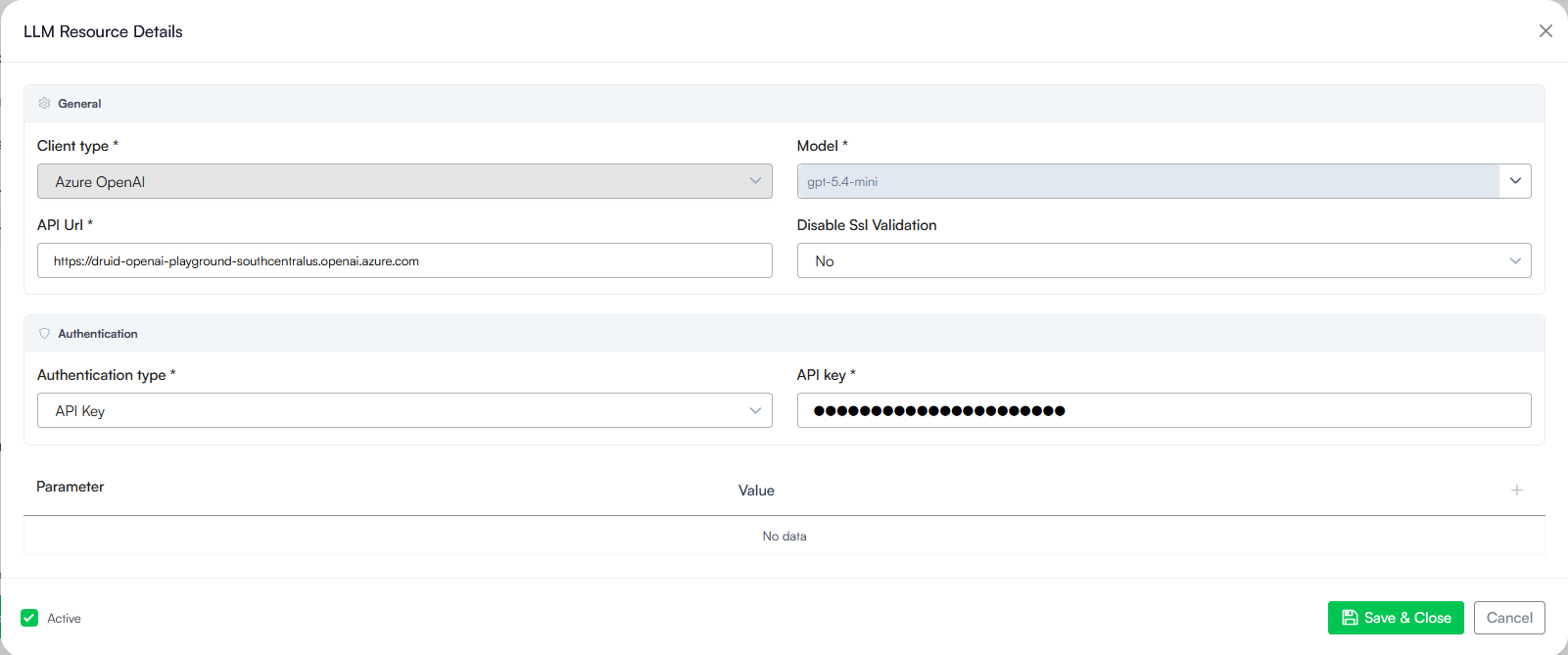
- Configure the general settings:
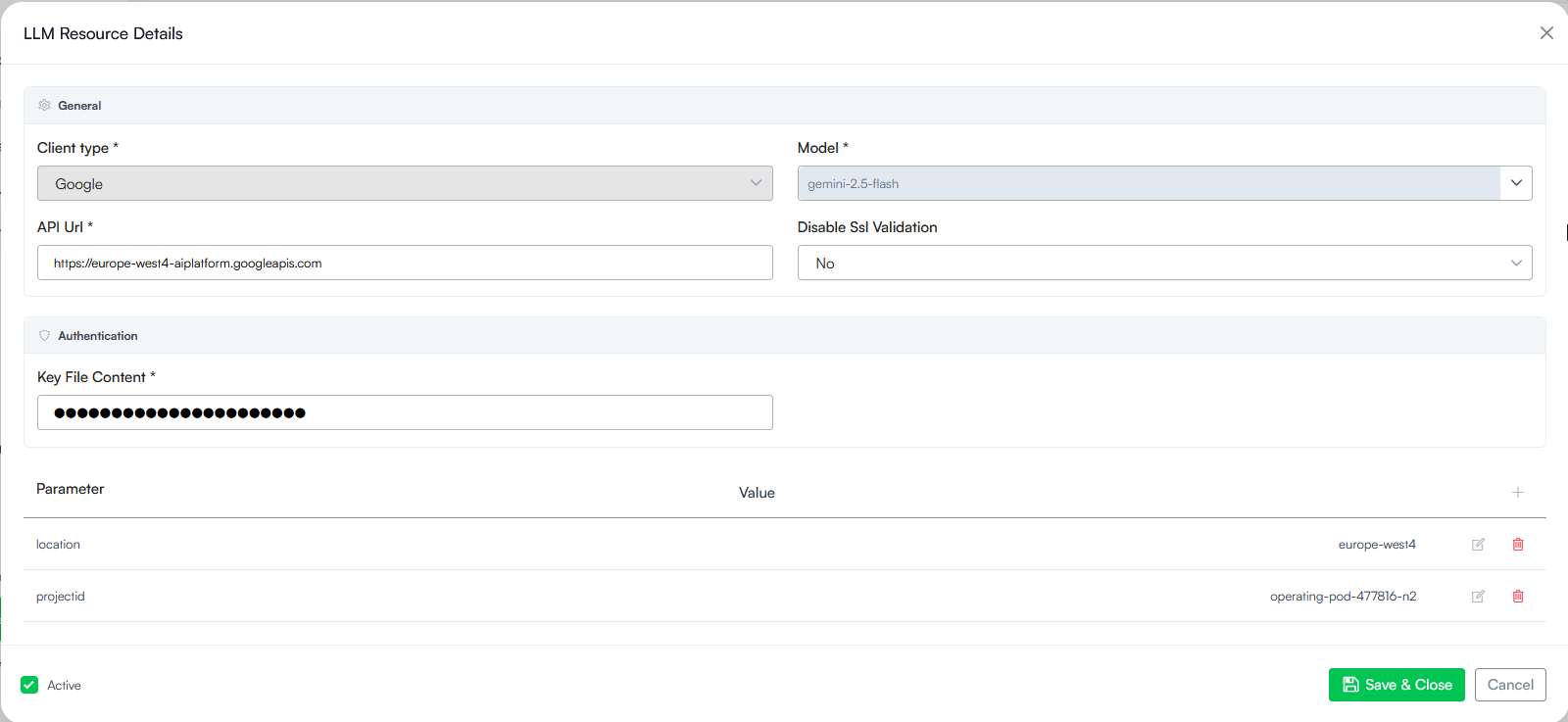
- Client type: Click the dropdown menu and select your AI vendor (e.g., Google).
- Model: Select or enter the specific model version you want to use from the dropdown list (e.g., gemini-2.5-flash).
- API Url: Type or paste the web address endpoint provided by your vendor (e.g., https://europe-west4-aiplatform.googleapis.com).
- Disable Ssl Validation: Keep this set to No. Only change this to Yes if explicitly instructed by your internal IT support team.
- Enter the specific security credentials provided by your AI vendor and set the required vendor-specific parameters. The platform automatically masks thecredentials into dots to protect your security.
- For Standard Providers (OpenAI, Mistral AI, Druid, Mesolitica, AWS or Azure OpenAI with API Key authentication), enter the API Key.
- For Google VertexAI: Paste your complete vendor key file data into the Key File Content field. In the Parameters table, you need to add the following required parameters:
- projectid- The unique identifier for your Google Cloud project where the Vertex AI services are hosted and billed.
- location- The specific geographic region or data center location where your Google Vertex AI model is running (for example: europe-west4 or us-central1).
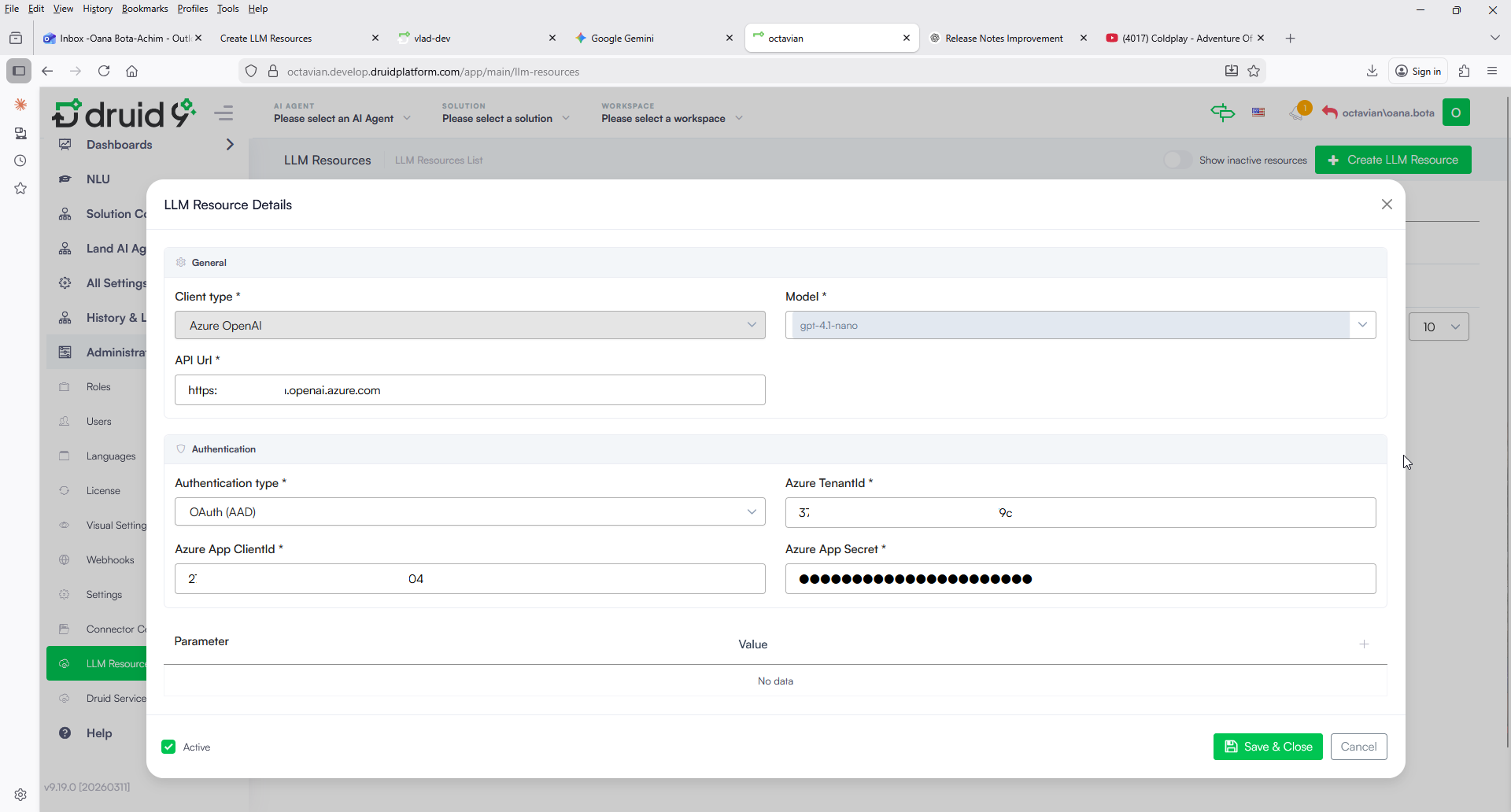
- For Azure OpenAI with OAuth (AAD): Unlike a static API key, which is valid until rotated, OAuth uses short-lived tokens. When selected, you must provide the following values you copied from Azure:
- Azure TenantId: The unique identifier of your Azure instance (the Directory (tenant) ID).
- Azure App ClientId: The Application ID of your registered app (the Application (client) ID).
- Azure App Secret: The client secret value generated for your app.
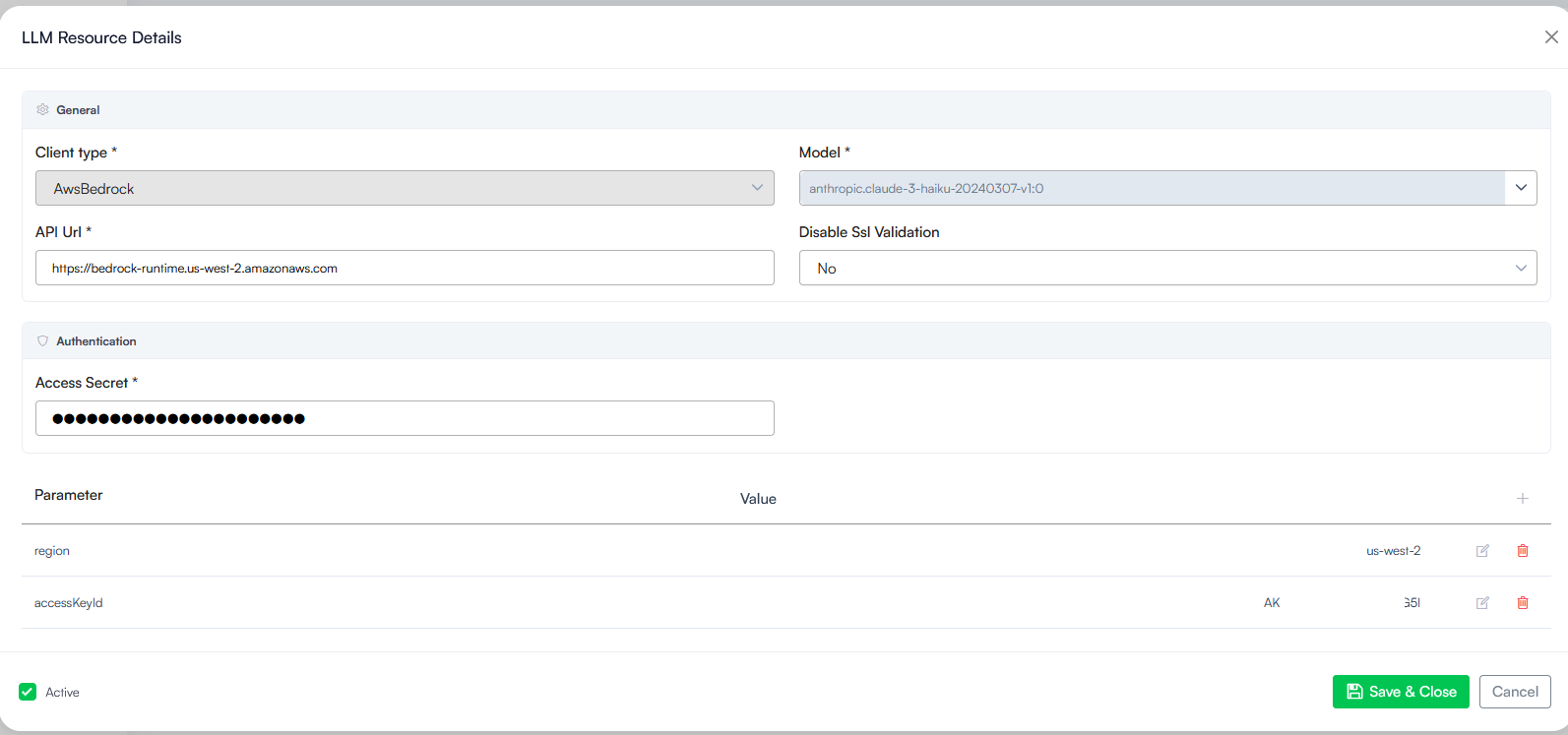
- For AwsBedrock: Enter the API Key In the Parameters table, you need to add the following required parameters:
- region: The specific geographic area or AWS data center where your Bedrock models are hosted (for example: us-west-2 or us-east-1).
- accessKeyId: A unique access key identifier provided by AWS that acts like a username to securely verify your integration connection.
- In the Parameters table you can optionally add parameters to control resource clustering and automatic backup plans (failovers). For more information, see Clustering and Backup Parameters.
- Check the Active box to turn the model connection on and make it available for use.
- Click Save & Close.
Clustering and Backup Parameters
| Parameter | Type | Description | Applies To | Default value | Value |
|---|---|---|---|---|---|
| LlmResourceCluster | String | A logical grouping label assigned to an LLM resource indicating the cluster it belongs to. Resources that belong to a cluster will not be able to be used as primary resource. | All vendors | - | Existing cluster name (e.g. Cluster-Backup) |
| FailoverLlmResourceCluster | String |
Configuration value on a primary (non-failover) LLM resource specifying the target cluster name to search for eligible failover LLM resources. When set, the system enumerates other resources whose LlmResourceCluster matches this value and treats them as failover candidates. |
All vendors | - | Any cluster name (e.g. Cluster-EU, Cluster-US, Cluster-Backup) |
| UnhealthyDurationInSeconds | Integer |
Sets the exact amount of time a primary model connection stays flagged as unavailable (unhealthy) after it encounters an error. When an error occurs, the system marks the connection as unhealthy for this specified number of seconds. During this temporary countdown window, the system automatically routes user requests away from the primary connection and over to your backup cluster based on the percentage you set in the UnhealthyFailoverRate. If no number is provided or if an invalid value is entered, it automatically defaults to 30 seconds. |
All vendors | 30 | Positive integer (e.g. 30, 60, 120) |
| UnhealthyFailoverRate | Integer |
Controls what percentage of your user traffic automatically moves over to your backup cluster while the main connection is marked as unavailable (unhealthy).
|
All vendors | 50 | Integer between 0 and 100 |
| GoogleUseAsPTU | Boolean | Specifies if a resource uses PTU from Google Agent Platform. | - | true/false | |
| FailoverTimeoutInSeconds | Integer | Specifies the timeout duration (in seconds) for a specific LLM resource instance. When a request evaluates multiple resources, the system applies the lowest configured timeout. | All vendors | - | Positive integer (e.g. 30, 60, 120) |
Knowledge Base Exclusion Parameters
This section details the parameter set used to manage Large Language Model (LLM) resource allocation for specific Knowledge Base (KB) operations. When set to "true", the specified KB task will ignore this resource. These flags can be configured individually or all at once to completely prevent a resource from being used in KB workflows.
| Parameter | Type | Description | Applies To | Default value | Value |
|---|---|---|---|---|---|
| ExcludeKbChunkingUsage | Boolean | Disables the LLM resource from performing Knowledge Base document chunking tasks. | All vendors | False | true/false |
| ExcludeKbGraphUsage | Boolean | Disables the LLM resource from executing Knowledge Base knowledge graph operations. | All vendors | False | true/false |
| ExcludeKbRerankUsage | Boolean | Disables the LLM resource from handling Knowledge Base search result reranking tasks. | All vendors | False | true/false |
LLM Governance
Once configured, these resources are protected by the platform governance framework. Access to view, edit, or delete LLM resources is restricted based on the user's assigned RBAC policy. This ensures that sensitive API keys are only accessible to authorized platform administrators.
The LLM resource becomes the engine for your AI Response Guardrails. This allows the platform to apply Hallucination Prevention (via Knowledgebase with GPT V4) and Content and Policy Enforcement consistently, regardless of whether the underlying model is hosted in the cloud or on-premises.